
|
Projetex 3D fails to install: PowerShell 2.0 deprecation
Posted by Mykhailo Serhiievskyi (AIT) on 15 February 2026 04:13 AM
|
|
|
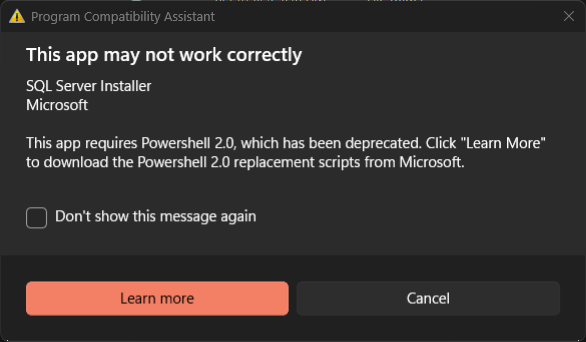
Q: I cannot use Projetex 3D in Windows 11 Pro. It is an error related to PowerShell 2. How do I proceed?
A: The error is related to PowerShell 2.0 feature deprecation in latest builds or Microsoft Windows (Windows 10, Windows 11, Windows 8 versions with newest updates).
On some builds, it is enough to just wait for the setup to finish. On some builds, it is still possible to re-enable this feature. Please get the special script here: https://cloud.aitland.com/index.php/s/z3n8Lkr666DPiN9 Open PowerShell (Admin) in the folder and run:
1. Update to the latest version of Projetex at https://www.translation3000.com/product-category/translation-management/ 2. Try running Projetex 3D Server with an external MS SQL Server:
3. Install and run Projetex 3D Server on a dedicated computer with an older OS. Note: make sure to protect the system from malware and hacker attacks, as old systems are not secure today. 4. Install and run Projetex 3D Server on a virtual machine with older OS version or build, where PowerShell 2.0 is still avaialble. Note: make sure to protect the system from malware and hacker attacks, as old systems are not secure today.
| |
 (0 vote(s)) (0 vote(s)) Helpful Helpful Not helpful Not helpful |
Privacy Policy | Data Processing Agreement